

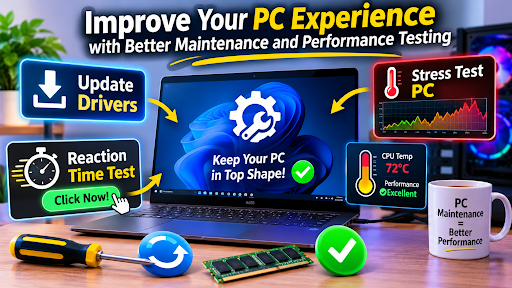
A computer needs regular maintenance to work reliably over time. Whether you use your PC for gaming, office tasks, video editing, or everyday browsing, keeping its software and hardware in good condition can make a noticeable difference. Sometimes, small issues such as outdated drivers, slow response times, or unexpected system slowdowns can affect your overall experience.
Understanding how to maintain your computer and check its performance can help you identify potential problems before they become more difficult to manage. With a few useful tools and simple habits, you can keep your system organized and make better use of its capabilities.
Why You Should Regularly Update Drivers
Drivers help Windows communicate with hardware components such as graphics cards, sound devices, network adapters, and printers. When these drivers become outdated, certain devices may not work as expected or could experience compatibility issues with newer applications.
It is important to update drivers regularly, especially when you notice problems with a particular device. For example, outdated graphics drivers may affect gaming performance, while network driver issues can sometimes cause unstable internet connections.
Windows provides built-in options for checking driver updates through Device Manager and Windows Update. You can also visit the official website of your hardware manufacturer to find compatible versions.
Before installing a new driver, make sure it matches your hardware model and Windows version. Avoid downloading driver packages from unfamiliar websites, as they may contain unwanted software or incompatible files.
Keeping drivers updated is not about installing every available update immediately. Instead, focus on security, compatibility, and fixing issues that affect your daily computer use.
Understand Your Computer’s Response with a Reaction Time Test
A responsive computer makes everyday activities more comfortable. Whether you are playing games, working with applications, or browsing websites, the time it takes for your system to respond can influence your experience.
A reaction time test is a simple way to measure how quickly you respond to a visual or audio signal. These tests are commonly used by gamers who want to understand their personal response speed and track changes over time.
During a typical test, a visual signal appears on the screen, and you click as quickly as possible after noticing it. The result is usually displayed in milliseconds.
However, it is important to understand that a reaction time test measures human response speed rather than directly measuring your computer’s overall performance. Your results can be influenced by several factors, including attention, tiredness, screen refresh rate, mouse latency, and input device quality.
For more consistent results, use the same device and testing conditions each time. Taking several attempts instead of relying on one result can also provide a more useful picture of your reaction speed.
Check System Stability with a Stress Test PC Tool
Sometimes, a computer works normally during basic tasks but struggles when running demanding applications. Gaming, video editing, rendering, and other intensive activities can place additional pressure on hardware components.
This is where a stress test PC tool can be useful. It allows users to place a controlled workload on selected hardware components and observe how the system responds.
Depending on the software, you may be able to test your processor, graphics card, or memory. During testing, you can monitor temperatures, clock speeds, and system stability.
A stress test PC application can help identify issues such as overheating, unexpected shutdowns, or instability under heavy workloads. These results can be especially useful when troubleshooting a newly built computer or checking a system after hardware upgrades.
Before starting a stress test, close unnecessary applications and make sure your computer has proper ventilation. Monitor temperatures throughout the process and stop the test if your system becomes unusually hot, unstable, or begins showing warning signs.
It is also important to use reputable testing software and follow its recommended instructions. A stress test should be performed carefully rather than running extreme workloads without understanding their purpose.
Keep an Eye on Temperature and Hardware Performance
Temperature is an important factor in computer maintenance. Processors and graphics cards naturally generate heat during operation, especially when handling demanding tasks.
However, excessive heat can cause components to reduce their operating speeds to protect themselves. This behavior is commonly known as thermal throttling.
Monitoring tools can help you understand how your hardware behaves during normal use and demanding workloads. If temperatures are consistently high, check whether your computer has sufficient airflow and whether its cooling system is working properly.
For desktop computers, removing dust from air vents and checking fan operation can help maintain airflow. Laptop users should avoid placing their devices on soft surfaces that block ventilation.
Combine Driver Updates and Performance Testing
Computer maintenance works best when different checks are used together. For example, if a game starts experiencing graphical problems, checking graphics drivers may be a sensible first step.
If the issue continues, you can monitor hardware temperatures and consider an appropriate stress test to investigate system stability.
Similarly, if your computer feels unresponsive, a reaction time test can help you evaluate your personal response speed, while system monitoring tools can help you investigate hardware behavior separately.
Keeping these checks separate makes troubleshooting easier because each tool serves a different purpose.
Develop a Simple PC Maintenance Routine
You do not need to perform complicated maintenance every day. A practical routine is usually enough to keep track of your computer’s condition.
Check for important driver updates when needed, monitor temperatures occasionally, and review system performance if you notice unusual behavior. You can also run a suitable stress test PC tool when troubleshooting hardware stability or checking a recent upgrade.
If you enjoy gaming, taking a reaction time test from time to time can help you track your personal progress. Just remember that consistent testing conditions are important when comparing results.
Final Thoughts
Maintaining a reliable computer involves more than simply installing software and using it every day. Keeping drivers compatible, understanding response speed, and checking hardware stability can help you make informed decisions about your system.
Whether you want to update drivers, try a reaction time test, or perform a stress test PC check, choosing appropriate tools and following safe testing practices can make computer maintenance easier.
With regular attention and a better understanding of your hardware, you can keep your PC in good condition and enjoy a more dependable computing experience.